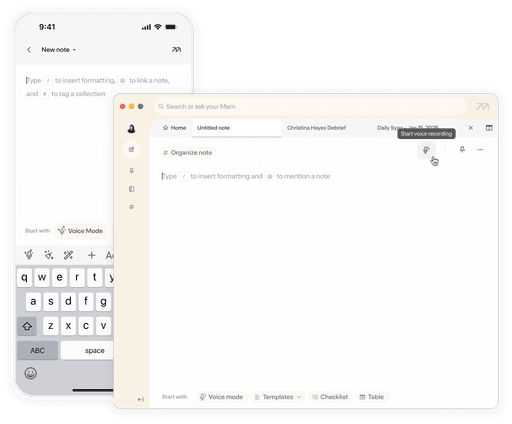
1.
With one click, Mem begins recording, transcribing, and organizing notes for you in real-time.
Mem records system audio and your microphone locally, and will never interrupt your meetings.
Speak your mind, no matter how messy. Mem is the AI EA that effortlessly captures and cleans your ideas and meetings so you can stay focused.
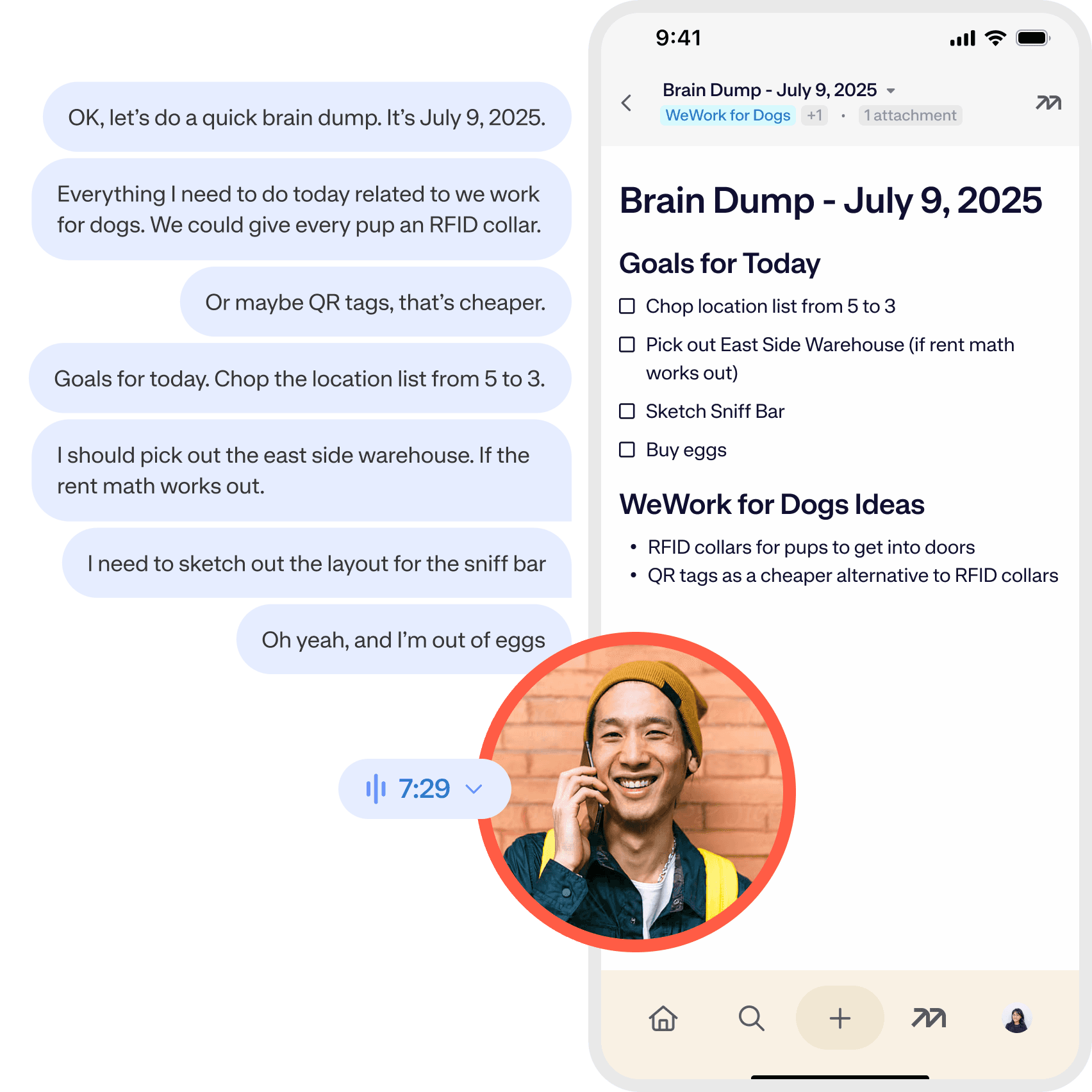
Mem records system audio and your microphone locally, and will never interrupt your meetings.
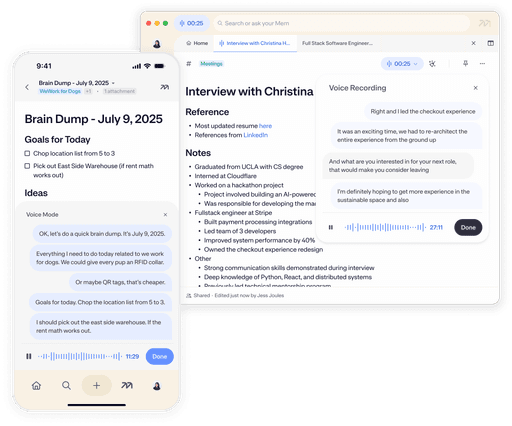
Pause and resume recording at any time.
Have more questions? Check out our Help and Supportcenter.
You can turn Mem into your personal AI meeting assistant on our iOS and Mac or Windows applications, which allows the voice recorder and AI transcription engine to capture both your own voice and those of other participants. Simply start Voice Mode in a note, and Mem will record, transcribe, and automatically transform the conversation into actionable, detailed meeting notes. Unlike other meeting bots, Mem records locally and won’t join your meetings.
You can use Mem as a voice-to-text tool for any audio, including YouTube, with the Mac or Windows desktop app. Ensure you’ve enabled the necessary system audio permissions, start Voice Mode, and play your video. Mem acts as an intelligent note taking assistant, generating a transcript and a concise summary of the video content directly in your workspace.
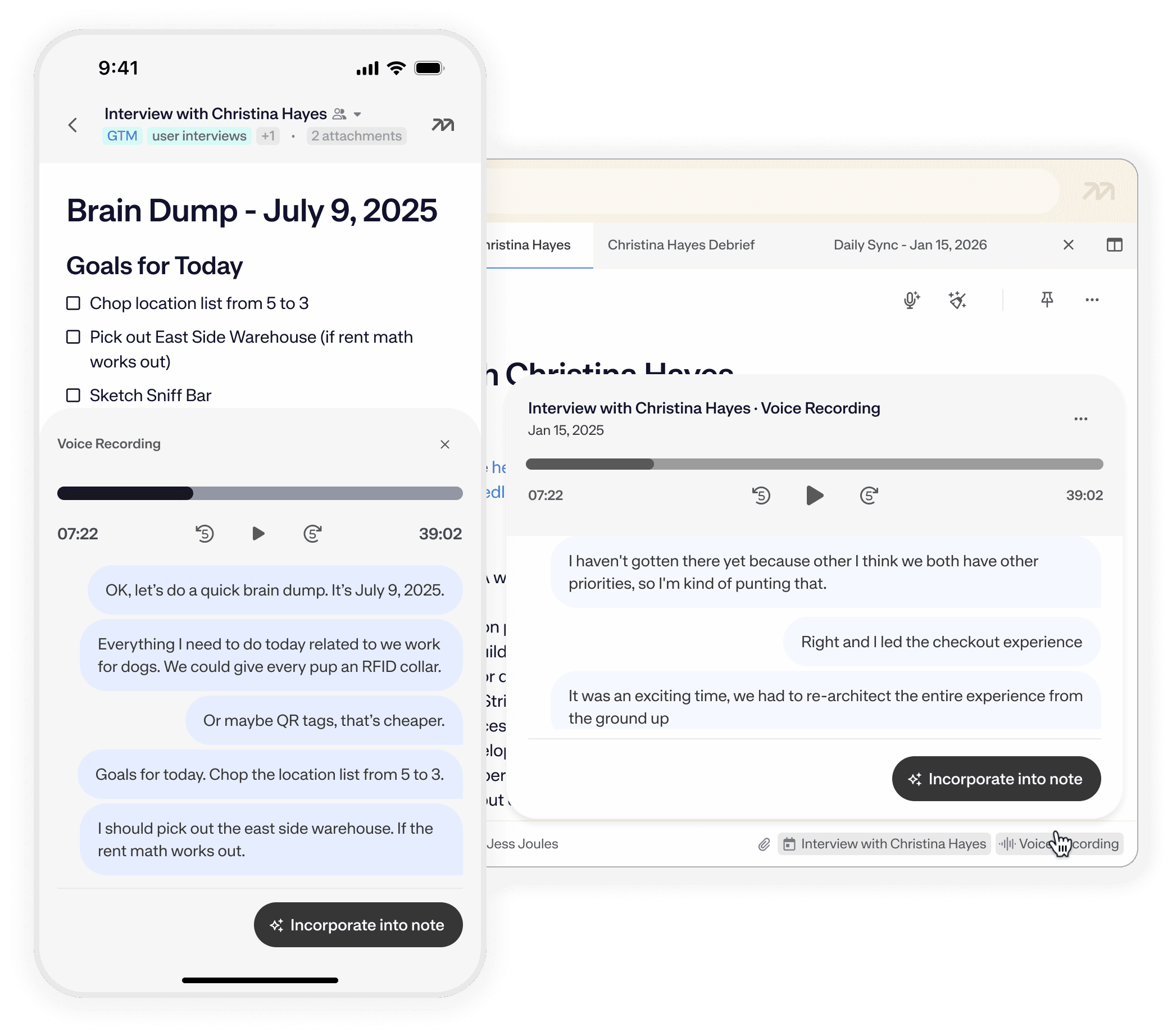
The original audio file and AI transcript is attached to the bottom of your note. You can revisit these recordings on any device—mobile, web, or desktop. Just hover over the attachment to open the playback interface and review the word-for-word transcript and automated meeting minutes alongside the original audio.
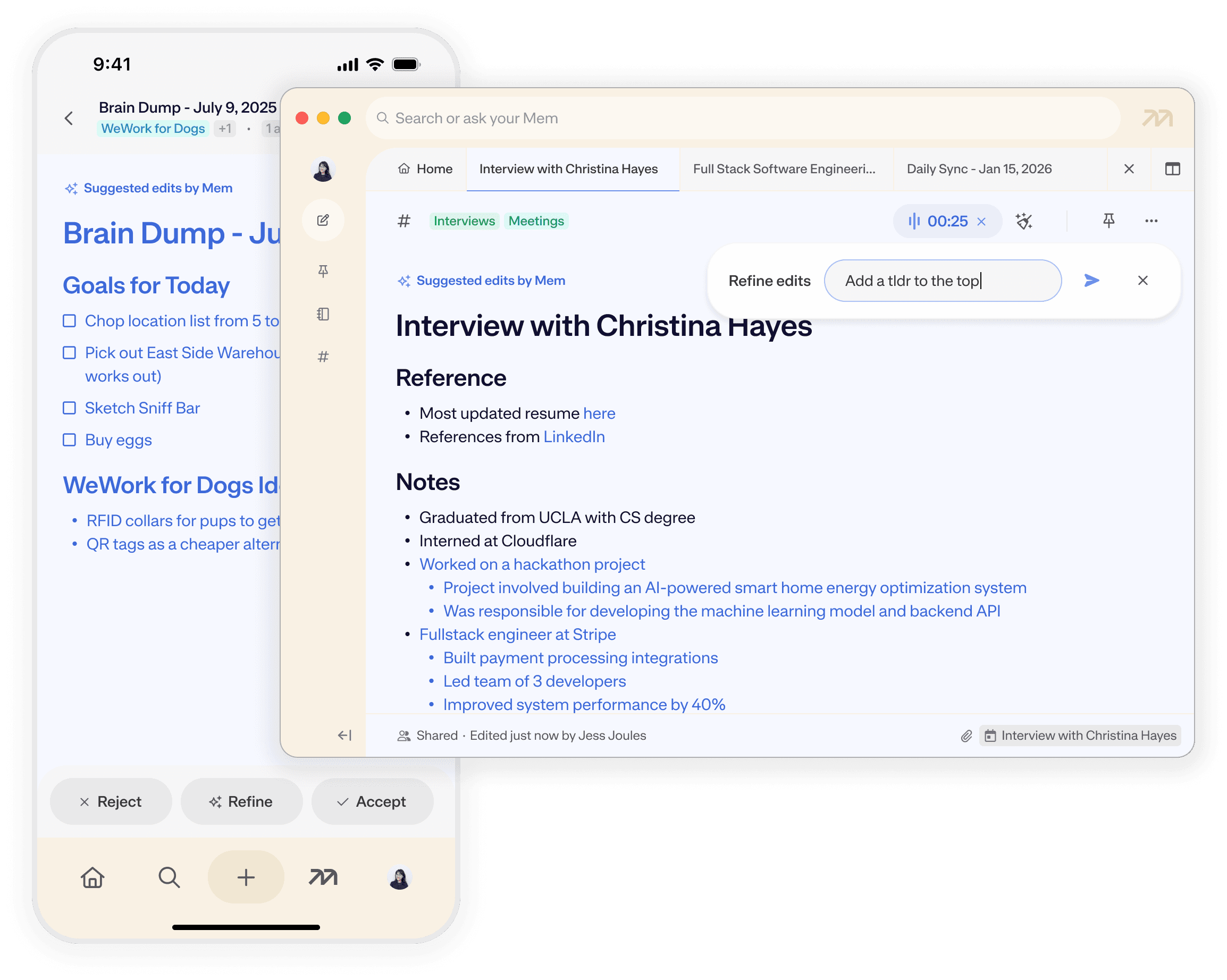
Mem is designed to be a flexible note taking assistant that learns your intent. If you want to change how it structures your thoughts—for instance, switching to bullet points, adding a short summary—simply click "Refine" after you’re done recording. You can then give Mem specific instructions like "summarize this in three bullets" or "add checkboxes to the action items" to change the format and level of detail. You can always reopen a note, open the voice recording source card, and click “Incorporate into note” to run another refine pass from the transcript.
Open the voice recording source card at the bottom of the note, click the “incorporate into note” button, and use the "Refine" tool to tell Mem exactly what you’re looking for.
Mac and Windows desktop apps capture both microphone input and computer audio, which allows Mem to record multiple speakers on a video call and in online videos. Web and iOS apps can only capture your microphone, so they’re better suited for on-the-go brain dumps, in-person meetings, and similar situations where the microphone can hear every speaker.
To record a full team discussion, you must use a supported desktop device (Apple Silicon Mac or Windows) and grant permissions for both microphone and computer audio. If Mem only hears you, it’s likely because it only has access to your microphone. Unlike other meeting bots that join your meetings as a participant, Mem captures audio directly from your system for a more seamless and discreet experience. Web and iOS cannot record other participants’ audio.
Currently, our AI transcription engine is optimized exclusively for English. If you’re interested in additional language support, please let us know!
Our high-performance voice recording and meeting detection features only work on Windows and macOS devices powered by Apple Silicon (M1, M2, M3…). If you see a “device not supported” message, you might be using an Intel-based Mac or older/unsupported hardware.
If you’re on an unsupported device (an Intel-based Mac or older architecture), the desktop app can only record your microphone, which means it can’t hear other speakers on video calls. On supported Windows and Apple Silicon Macs, ensure system/computer audio permissions are granted so that Mem can access both your microphone and the meeting audio.


I no longer worry about how I organize or segment notes into different apps—I toss it in Mem and know it will be there when I need it. So much weight off my shoulders.