01
Think out loud. Get a note worth keeping.
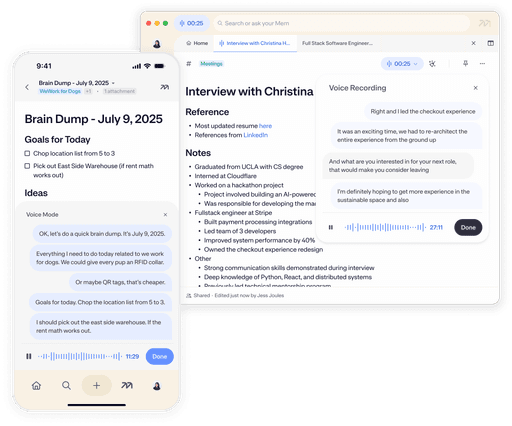
Talk through an idea, add screenshots as you go, and let Voice Mode turn the whole stream into a structured note. The recording and transcript stay attached.
Explore Voice Mode →
Mem Workspace
Think out loud, write a note, or let Mem take the meeting. Everything stays organized, connected, and ready for you—and your AI tools.
Capture
Voice Mode and calendar capture get the words down while you stay in the moment.
01
Talk through an idea, add screenshots as you go, and let Voice Mode turn the whole stream into a structured note. The recording and transcript stay attached.
Explore Voice Mode →
02
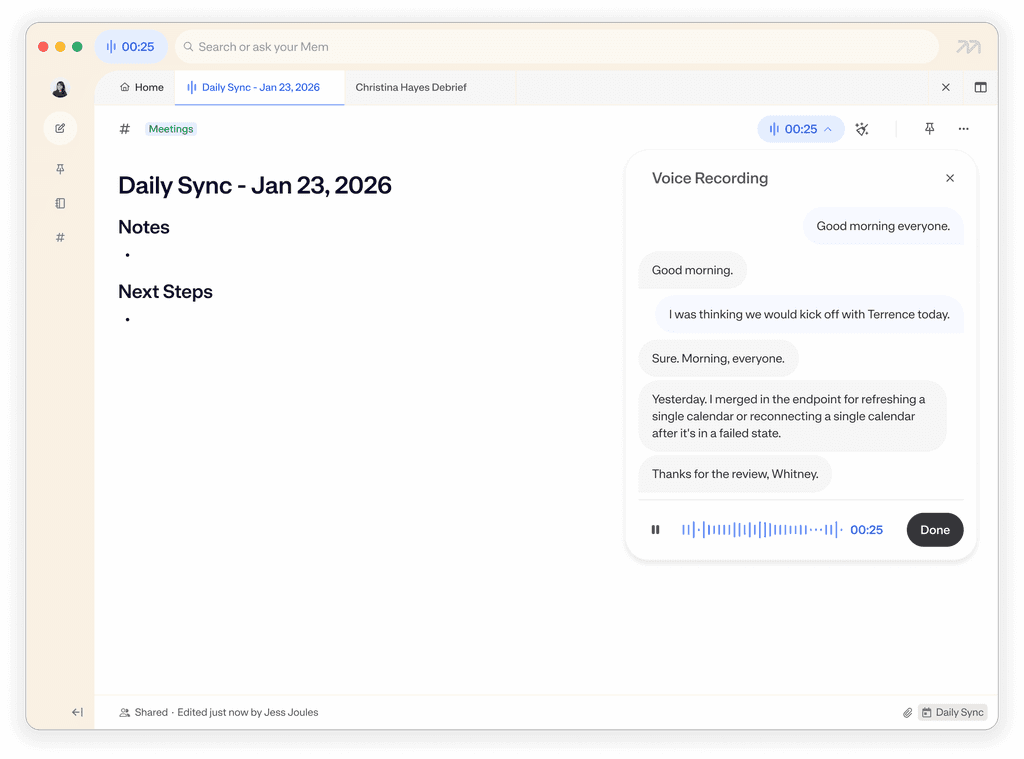
Connect your calendar and Mem lets you know when a meeting starts. Record it, stay in the conversation, and come back to the transcript, summary, and next steps.
Explore Calendar →

Editor
Markdown as you type. Collapse any header or bullet. Clean up rough notes in place when you want help—and keep writing normally when you don’t.
launch thoughts
launch email tuesday maybe — need final pricing from jordan first
maya has screenshots, check the mobile ones. use lois quote?
make sure support knows what’s changing + add faq links somewhere
Confirm final pricing with Jordan
Review Maya’s mobile screenshots
Drag to compare
Organize + navigate
Mem organizes in the background, then puts the related work beside you before you have to search for it.
Add a note to a Collection yourself, or ask Mem to organize a pile of notes at once. Your structure stays visible and editable.
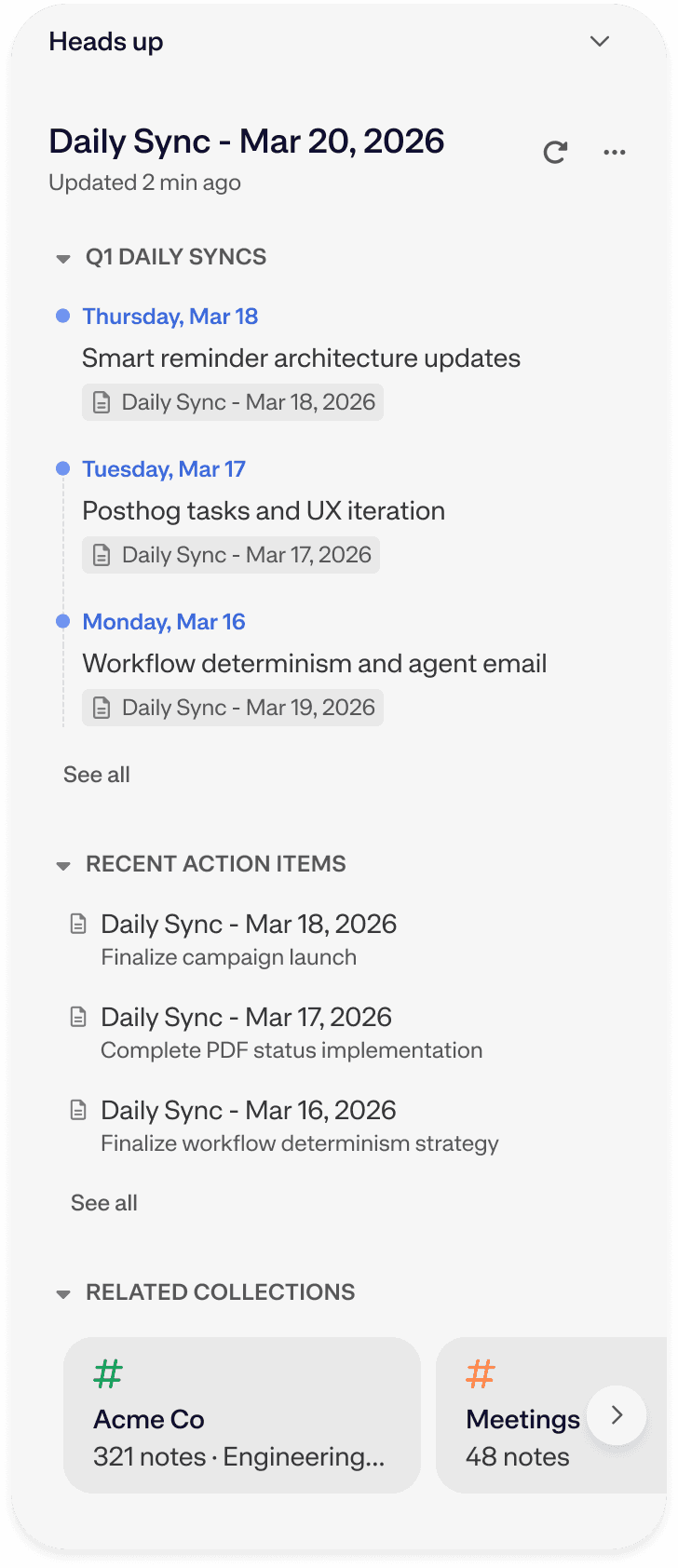
Open Heads Up beside any note to move through related people, projects, decisions, timelines, and Collections without losing your place.
Explore Heads Up →
Connected AI
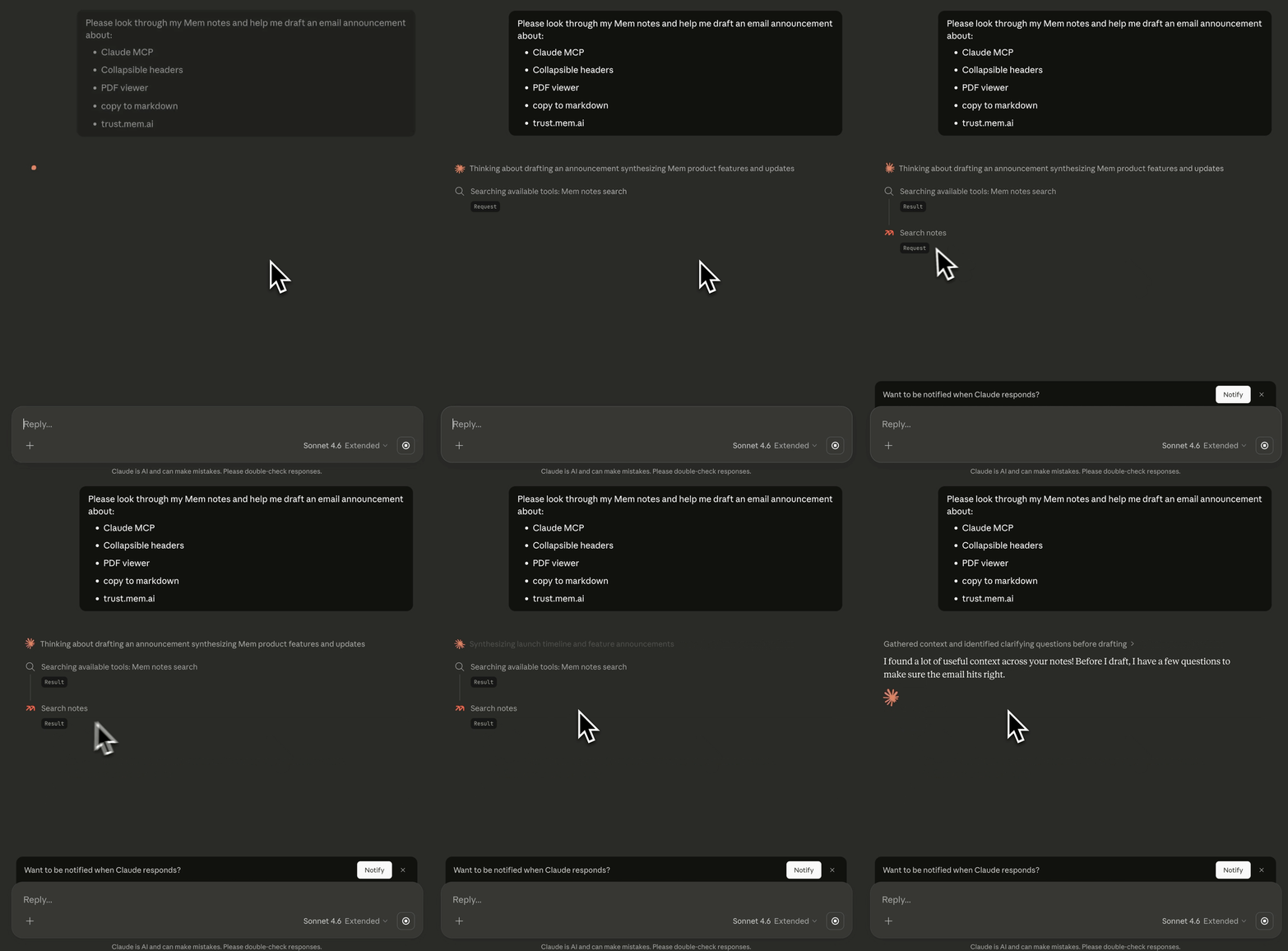
Connect with MCP so the AI tools you already use can search your notes, create new ones, and build from what you know—without copy-pasting context into every chat.

Workspace + Agent


I no longer worry about how I organize or segment notes into different apps—I toss it in Mem and know it will be there when I need it. So much weight off my shoulders.